Retain App: Linear Export
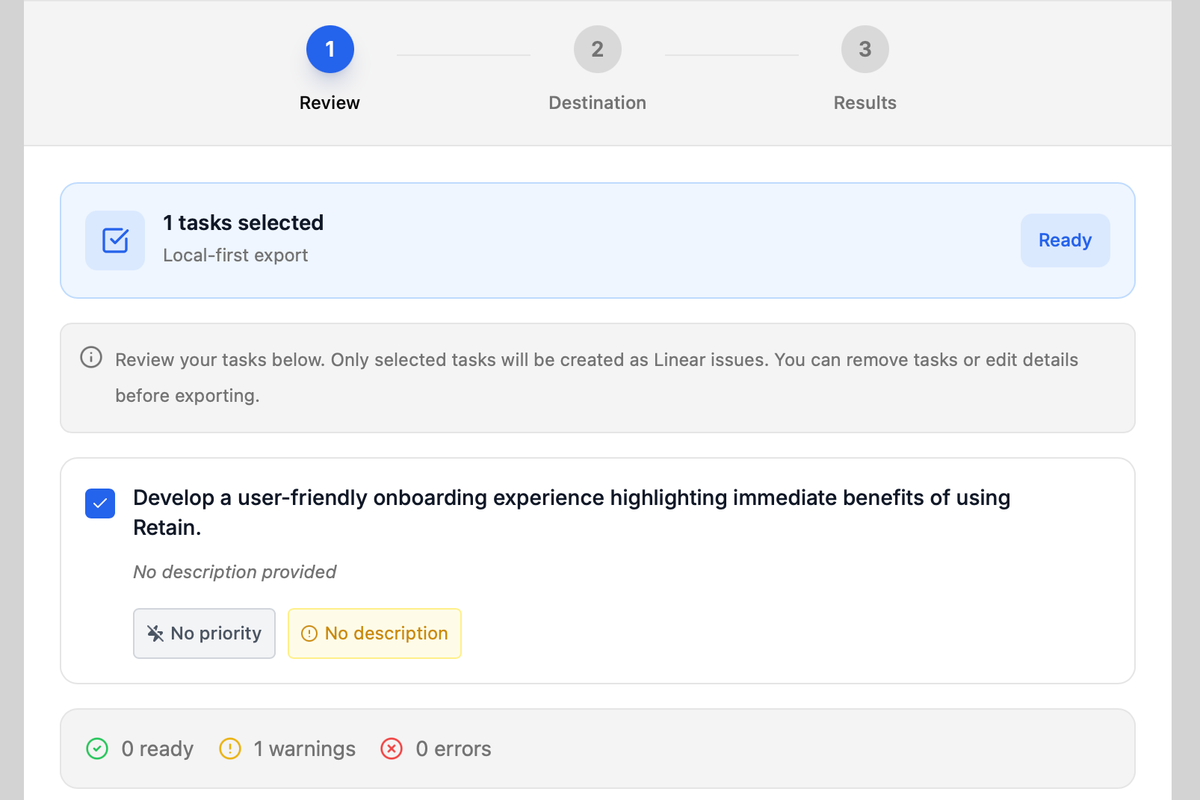
Retain’s Linear integration lets you export tasks from Retain into Linear issues on **linear.app**.
Exports are local-first: Retain only sends the tasks you explicitly select. Nothing syncs silently in the background
What You Can Do
- Connect your Linear account to Retain.
- Export a single task, or export all tasks from a memory.
- Choose the target team (required) and project (optional).
- Prevent duplicates with built-in idempotency.
Requirements
- A Linear workspace on linear.app with at least one team.
- A Retain account with task data. (Tasks are created automatically each time you summarize your notes.)
Connect Your Linear Account
Open the Retain app.
Go to Account → Tasks.
Under Linear, click Connect.
Complete the Linear OAuth flow in your browser.
You’ll be redirected back to Retain.
If you don’t see the Tasks tab, your build may not include this feature or your account may be restricted by feature flags.
Export Tasks to Linear
You can export tasks in two main ways:
A) Export a Single Task
Select a task.
Open the context menu.
Choose Export to Linear → Export task.
Pick a team and an optional project.
Click Export.
B) Export All Tasks From a Memory
Open a memory that contains tasks.
Open the context menu.
Choose Export to Linear → Export all tasks from memory.
Pick a team and an optional project.
Click Export.
What Gets Exported
Retain fields are mapped to Linear fields like this:
| Retain Field | Linear Field | Notes |
|---|---|---|
task.name | title | Task title |
task.description | description | Task body / details. Includes link to Retain task for deduplication. |
task.priority | priority | Priority mapping |
task.status | stateId | Optional; maps to Linear workflow |
workspace.name | label | Optional; used for categorization |
Notes
- Priority is mapped to Linear priority values (0–4).
- State mapping is optional and depends on your workflow settings.
- Labels are optional.
Avoiding Duplicates
Retain uses a stable externalId when creating issues:
retain:{taskId}:{teamId}
On export, Retain checks for an existing Linear issue with the same externalId. If it exists, Retain skips creation and returns the existing issue.
Troubleshooting
“No Linear provider found”
You’re not connected, or the provider was removed. Reconnect from Account → Tasks.
“Linear authentication failed”
Your token expired or was revoked. Reconnect the account.
Export dialog shows no teams
Your Linear connection may be incomplete or expired. Refresh the provider in Account → Tasks, then reopen the export dialog.
Nothing happens after clicking Export
Check your network connection and try again. If the issue persists, disconnect and reconnect Linear.
Disconnect Linear
Go to Account → Tasks.
Click Disconnect next to your Linear account.
This removes the provider from Retain. It does not delete issues in Linear.
Privacy and Security
- Tokens are stored server-side in encrypted storage.
- The Linear client secret is never sent to the client.
- Retain only exports tasks you explicitly choose.
FAQ
Does this sync tasks both ways?
No. Export is one-way and local-first.
2. Can I export to multiple teams?
Yes. Choose the team each time you export.
3. Will re-exporting create duplicates?
No. Exports are deduplicated by tracking the URL added to the linear ticket.
Important: Do not delete the URL in the description to avoid the tickets from being recreated.
4. Can I update existing Linear issues from Retain?
Not yet. The current flow creates issues or skips duplicates.
Helpful links:
- Linear: https://linear.app
Need help?
Can't find what you're looking for? Contact our support team for a quick reply.
Contact Support