Retain App: Account Management
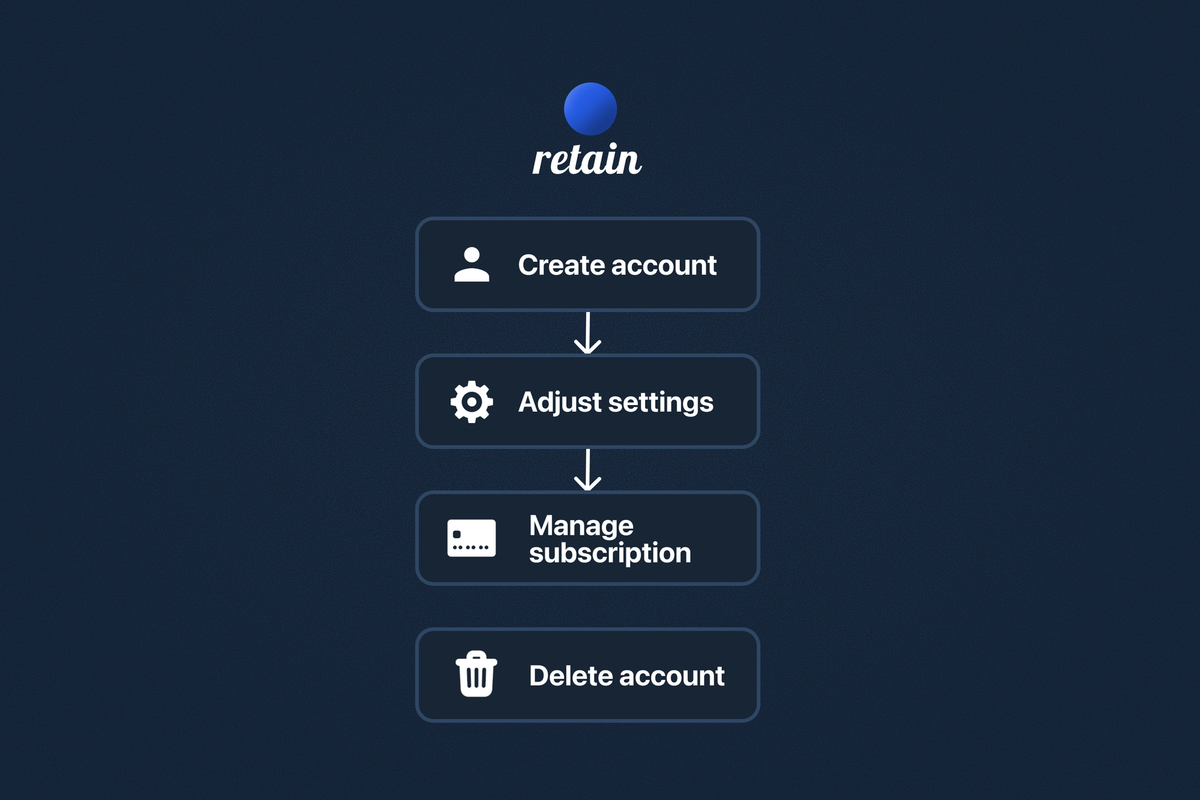
Manage your Retain account:
| Step | Action |
|---|---|
| 1 | Create account |
| 2 | Adjust settings |
| 3 | Manage subscription |
| Delete account |
1. Create account
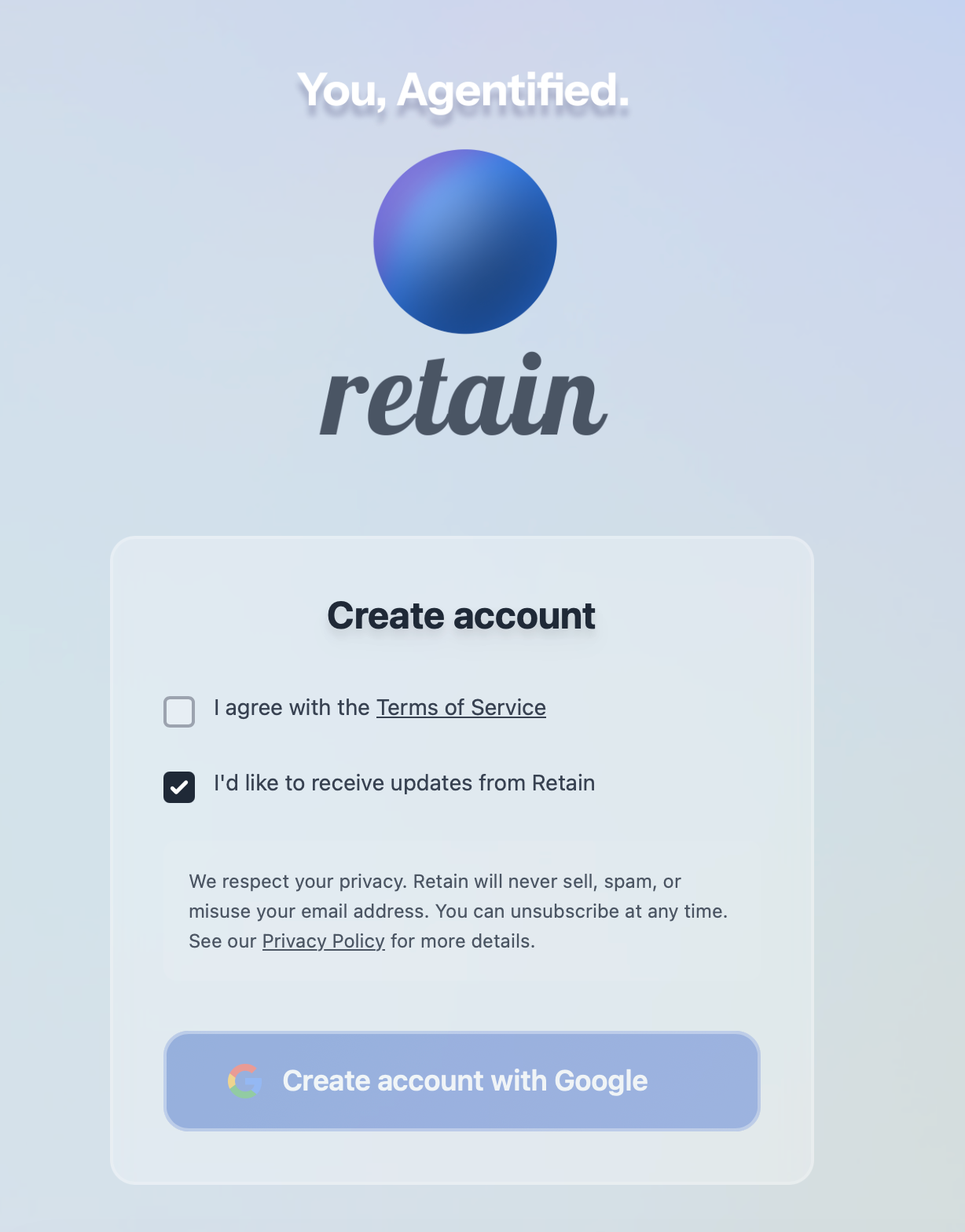
Sign up using your work email so Retain can personalize insights and connect to your calendar and inbox.
Once your account is created, you’ll immediately gain access to your dashboard and setup prompts.
2. Accessing Your Settings
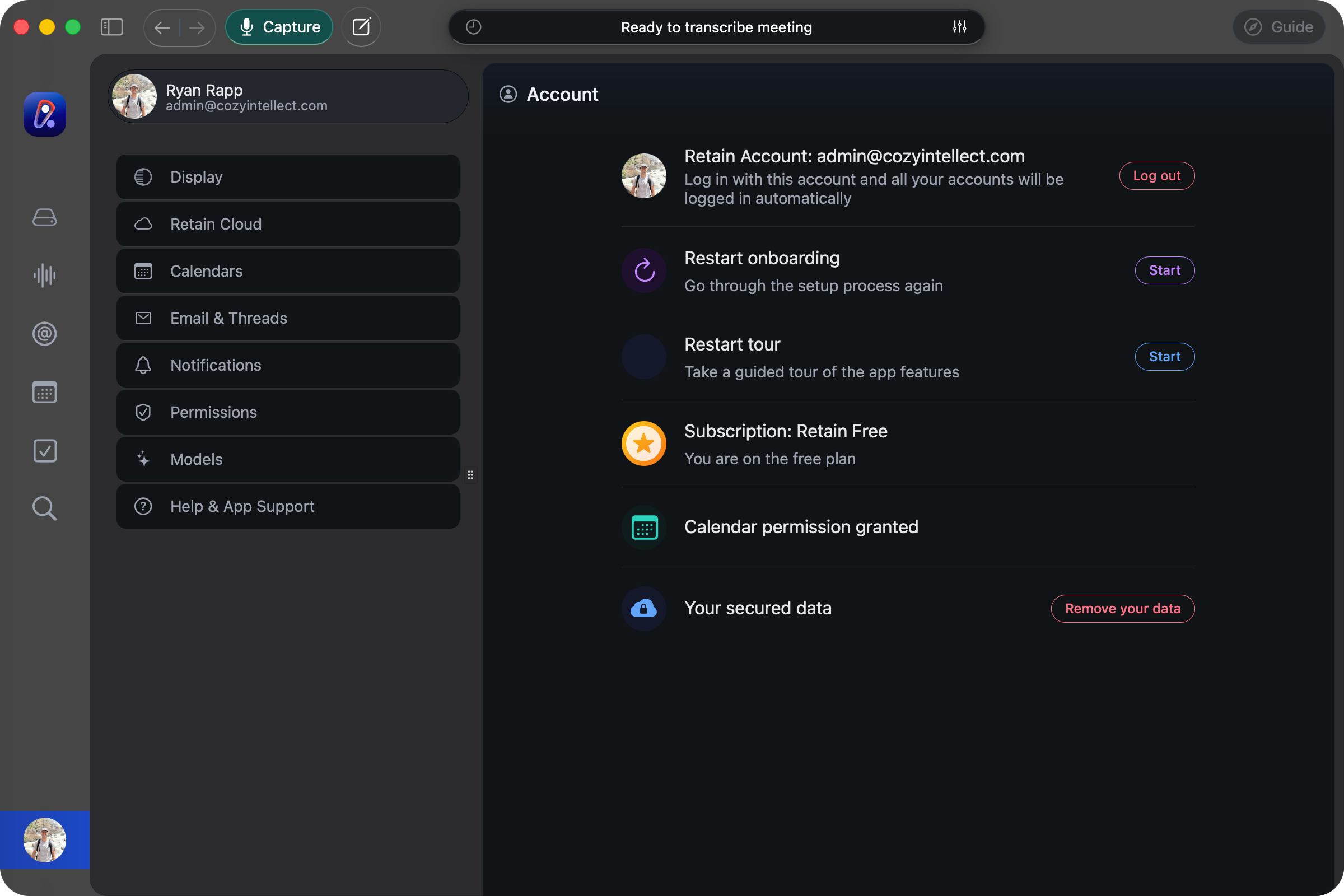
Open the Account screen by clicking your profile icon or navigating to Account from the main menu. Alternatively, you can visit https://retainapp.ai/account. You'll find all settings organized into tabs along the left side.
Account Overview
The Account tab is your home base for managing your Retain profile.
View Your Profile: See your connected email address and profile picture. Use the Log out button to sign out of your account.
Restart Onboarding or Tour: Want a refresher on how everything works? Click Start next to either option to go through the initial setup process again or take a guided tour of app features.
Subscription Status: View your current plan and status at a glance—whether you're on a trial (with days remaining), have an active subscription, or need to update payment info. For full subscription management, see our Subscription Management Guide.
Display Settings
Choose how Retain looks on your screen.
Navigate to the Display tab
Select your preferred theme: Auto, Light, or Dark
Your selection applies immediately
Tip: The Auto setting follows your device's system preference, automatically switching between light and dark modes.
Retain Cloud
Keep your data synchronized and your search running smoothly.
Sync Your Data: Click Sync to ensure your local data is up to date with Retain Cloud. You'll see a progress bar showing the sync status, and you can stop the process at any time if needed.
Reindex Search: If you're not finding what you expect in search results, click Go next to Reindex Search. This rebuilds your search index and may take a few minutes to complete.
Google Drive
Connect Google Drive to export your notes, drafts, and summaries directly to Google Docs.
Navigate to the Google Drive tab
Click Connect and sign in with your Google account
Once connected, you'll see your account email with a green status indicator
Retain can only access files that Retain creates—it won't see or modify your other Drive files. Your data is never used for training models.
To disconnect, click the dropdown arrow next to your account and select Disconnect.
Notifications
Control which emails and alerts you receive from Retain.
Navigate to the Notifications tab to toggle these options:
- Account Emails – Essential emails about your account activity and security (always enabled)
- Threads Digest – A daily summary of new topics and conversations
- Meeting Prep – A daily email with details on your upcoming meetings
- Product Updates – News about new features and improvements
- Push Notifications (desktop app) – Alerts 10 minutes before calendar events start
For push notifications on the desktop app, you'll be prompted to grant system permission when you enable this option. You can also send a test notification to make sure everything is working.
Permissions
The Permissions tab gives you a quick overview of what Retain can access.
Each permission shows either a green checkmark (connected/granted) or a Go button to set it up:
- Calendar Access – Whether your calendar is connected
- Email Access – Whether your email is connected
- Local Models – Whether transcription models are downloaded
- System Audio Recording – Permission to capture audio for meeting transcription
- Microphone Permission – Permission to use your microphone
Click Go or Open next to any item to navigate directly to that setting or grant the required permission.
Models
Download and manage local AI models for transcription.
If you see a Continue button, click it to complete the model setup. Once configured, you'll see a green checkmark indicating your models are ready.
Help & App Support
Get assistance and learn more about Retain.
- Help Documentation – Browse guides and tutorials
- Contact Support – Reach our support team via email
- Report a Bug – Help us improve by submitting issues you encounter
- About Retain – View version information and legal details
For guides on connecting your calendar, connecting your email, managing your subscription, or deleting your account, please see our dedicated documentation for each of those features.
3. Manage subscription
Please reach out to [email protected] for subscription information.
4. Delete your account
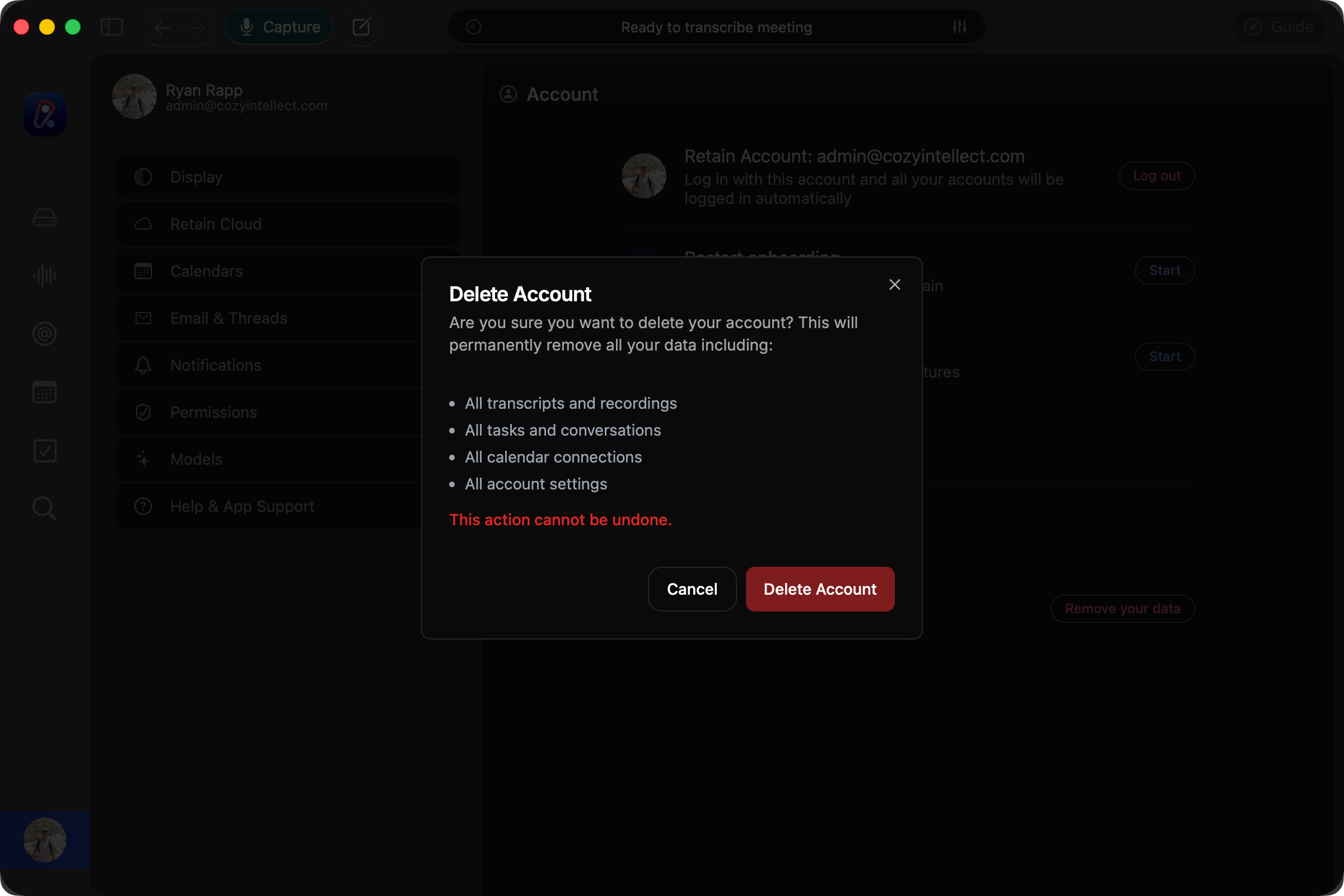
Visit your account settings page within the app, or visit https://retainapp.ai/account to delete your account. All data will be permanently removed.
Need help?
Can't find what you're looking for? Contact our support team for a quick reply.
Contact Support