Retain App: Workspaces
Workspaces
Workspaces help you organize your meetings, calendar events, emails, and documents into separate project spaces. Instead of sifting through everything at once, you can focus on what's relevant to a specific area of your work.
Getting Started
When you first set up Retain, workspaces are created automatically based on your onboarding profile. You can start using them right away or customize them to fit how you work.
Filtering by Workspace
Click the workspace icon on your home screen to filter your view by workspace. This gives you a focused look at what's happening in each project space.
You can also filter by workspace in the left column of each tab: Memories, Calendar, Threads, and Drive. Use the workspace filter to select a space, search within the list, or open the Edit spaces panel.
Creating a New Workspace
Open the workspace filter in the left column of any tab
Click Edit spaces
Click Add new Space
Enter a name and choose an icon and color for your workspace
Managing Workspaces
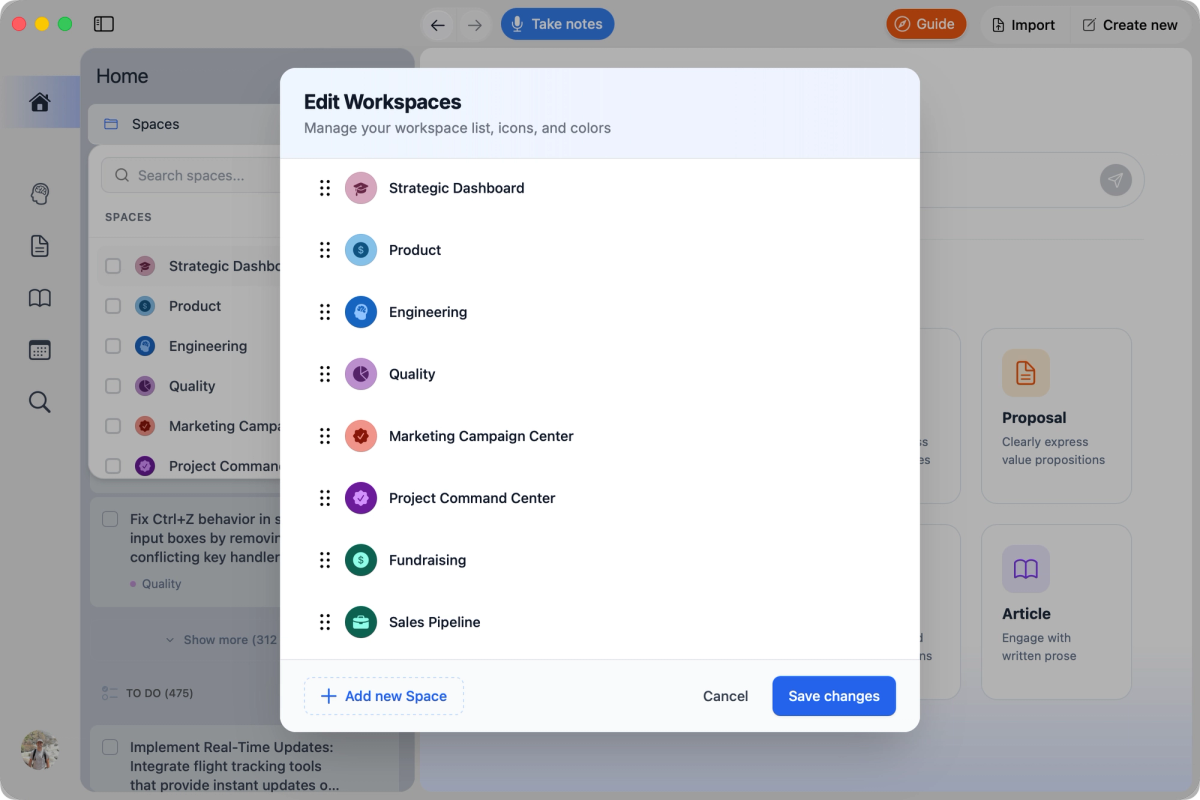
From the workspace filter, click Edit spaces to open the workspace manager.
Use Add new Space to create a workspace, then edit its name, icon, and color.
Drag the handle to reorder workspaces, or use the pencil and trash icons to edit or delete an existing workspace.
Click Save changes or Cancel to close the panel when you're done.
Organizing Tasks by Workspace
After summarizing a meeting, select Classify tasks to automatically assign tasks to the appropriate workspaces. This helps keep your to-dos organized without manual sorting.
Need help?
Can't find what you're looking for? Contact our support team for a quick reply.
Contact Support