Retain App: Installation Guide
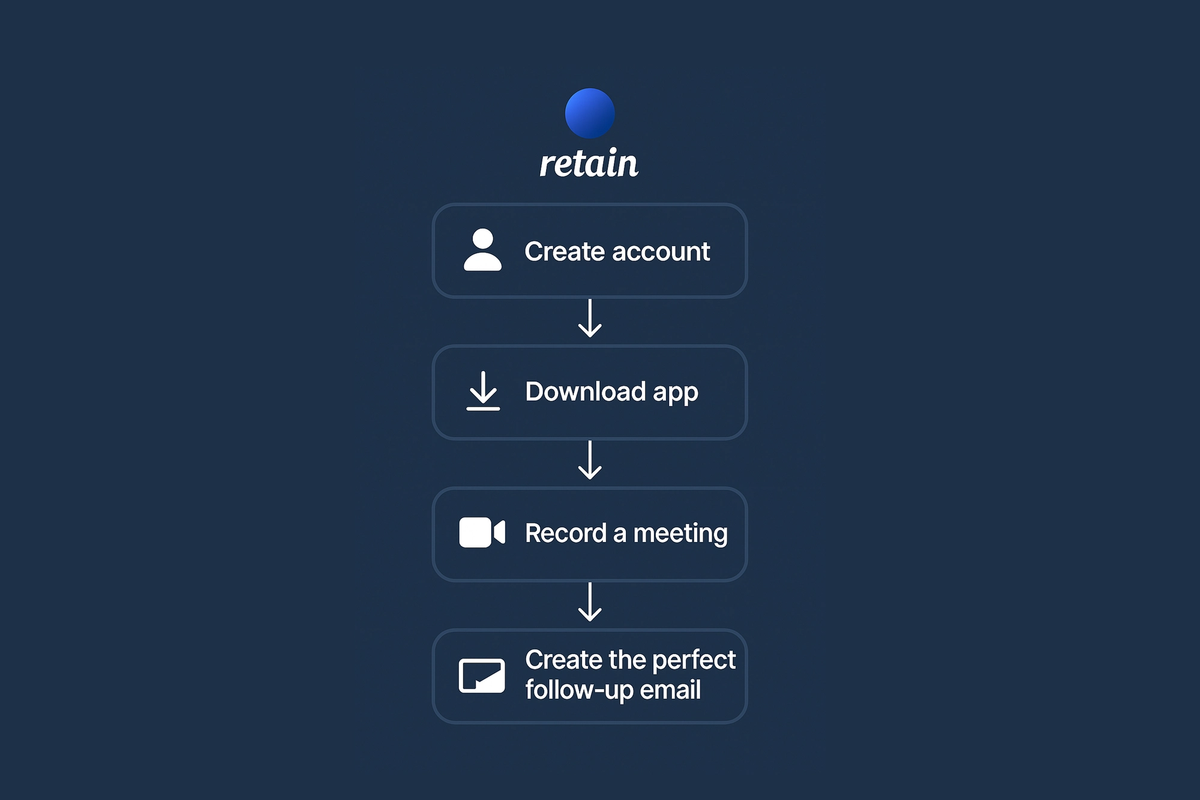
Get started using Retain by downloading for your device:
| Platform | Architecture | Status |
|---|---|---|
| macOS | Apple Silicon (M1+) | Public |
| macOS | Intel (x86_64) | Not supported |
| Windows | x86_64 | Private beta |
| Windows | ARM | Not supported |
| iOS | — | Private beta |
Installing Retain
This guide covers how to install, update, and remove Retain on your devices.
macOS
System Requirements
- Apple Silicon Mac (M1 or later)
- macOS 15 Sequoia or later
Installing Retain
Download the installer from retainapp.ai/download
Open the downloaded .dmg file
Drag the Retain app to your Applications folder
Eject the disk image by dragging it to the Trash or right-clicking and selecting Eject
Open Retain from your Applications folder or Launchpad
Note: The first time you open Retain, macOS may display a security prompt. Click Open to confirm you want to run the app.
Granting System Permissions
Retain needs two permissions to transcribe your meetings. You'll be prompted to grant these when you first use the app, or you can set them up in System Settings > Privacy & Security.
Screen Recording: Retain uses this permission to capture audio from your apps during meetings. Despite the name, Retain only records audio—not your screen. To enable, go to System Settings > Privacy & Security > Screen Recording and toggle on Retain.
Microphone: This permission allows Retain to record your voice during meetings. To enable, go to System Settings > Privacy & Security > Microphone and toggle on Retain.
Updating Retain
Retain checks for updates automatically. When an update is available, you'll see a prompt to download and install it. You can also check manually by selecting Retain > Check for Updates from the menu bar.
Reinstalling Retain
If you need to reinstall Retain, simply download a fresh copy from retainapp.ai/download and follow the installation steps above. Reinstalling the app does not delete your data—your transcripts, settings, and connected accounts remain intact.
Uninstalling Retain
Quit Retain if it's running
Open your Applications folder
Drag Retain to the Trash
Empty the Trash to complete the removal
Uninstalling removes the app but does not delete your cloud data. To delete your account and all associated data, see our Account Management guide.
Windows
Retain for Windows is now available in beta testing. Both CPU and Nvidia GPU versions are available.
System Requirements: Windows 10 or later
To request access, please email us at [email protected].
iPhone
Retain for iPhone is now available in beta testing.
System Requirements: iOS 16 or later
To request access, please email us at [email protected].
Need help?
Can't find what you're looking for? Contact our support team for a quick reply.
Contact Support