Retain App: Quick Start Guide
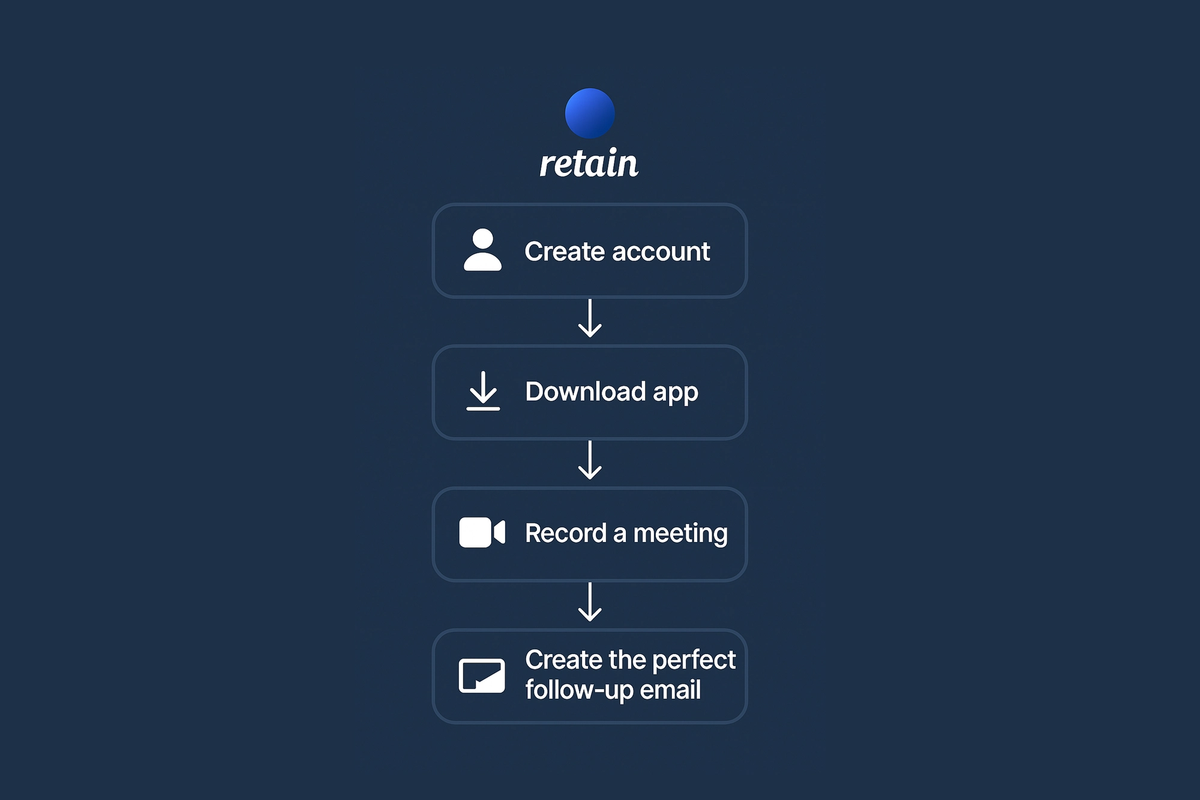
Quickly get started using Retain in four steps:
| Step | Action |
|---|---|
| 1 | Create account |
| 2 | Download app |
| 3 | Record a meeting |
| 4 | Create the perfect follow-up email |
1. Create account
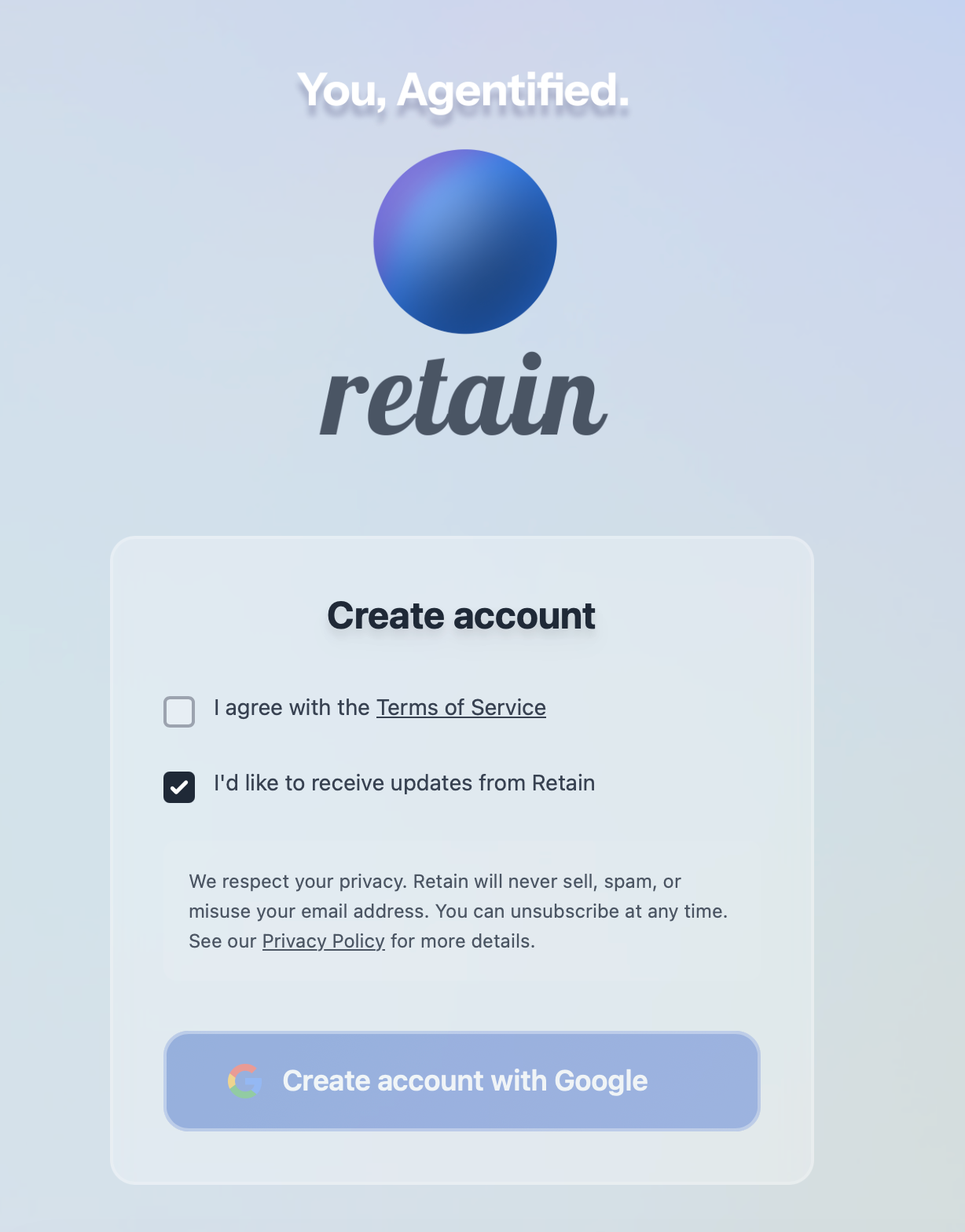
Sign up using your work email so Retain can personalize insights and connect to your calendar and inbox.
Once your account is created, you’ll immediately gain access to your dashboard and setup prompts.
2. Download app
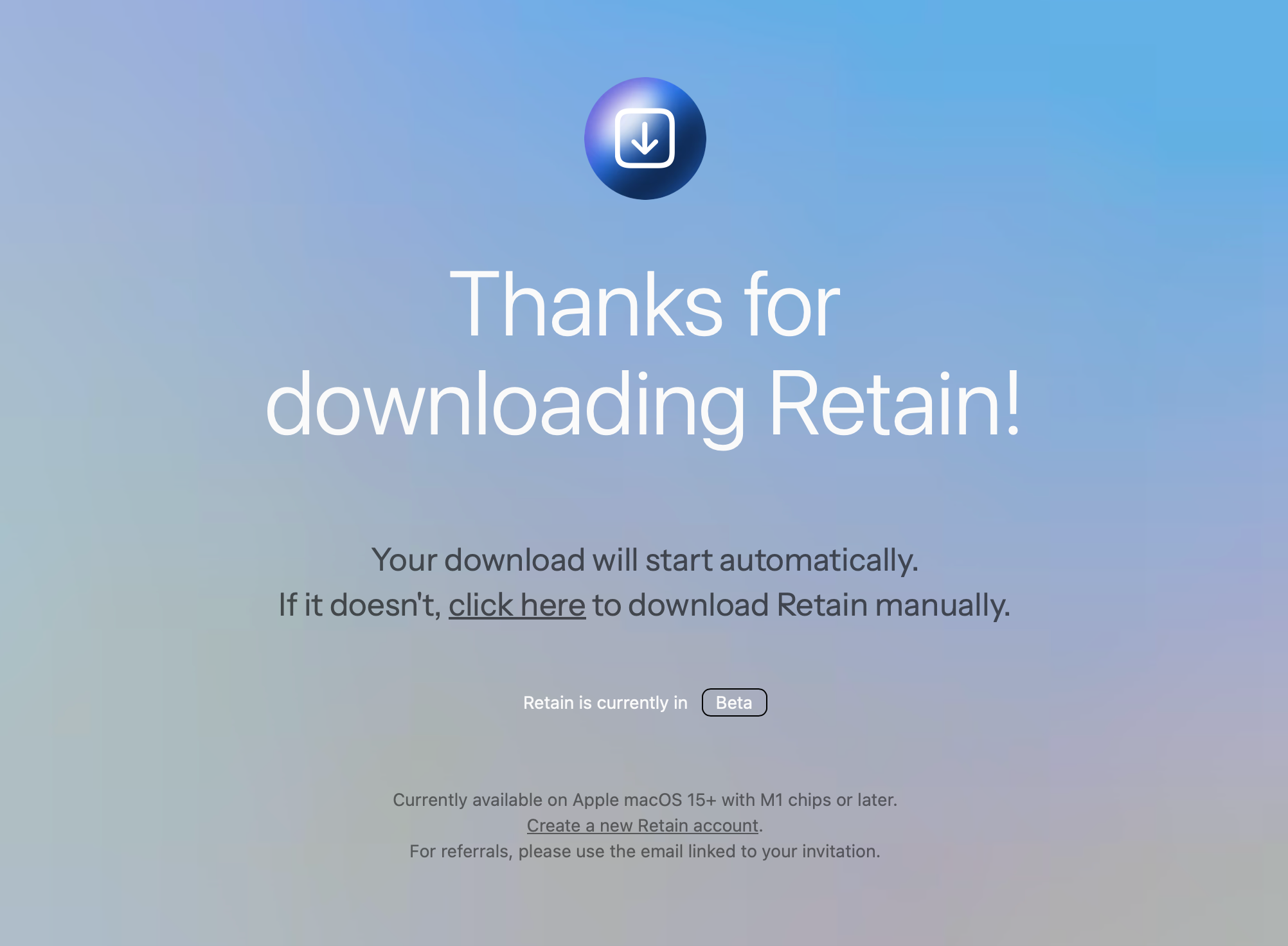
Visit http://retainapp.ai and choose the download link the top right corner.
Install the Retain desktop app for the best recording and automation experience.
Log in to sync your calendar, email, and workspace settings.
The app guides you through permissions so meeting capture and note syncing work seamlessly.
3. Takes automatic notes for a meeting
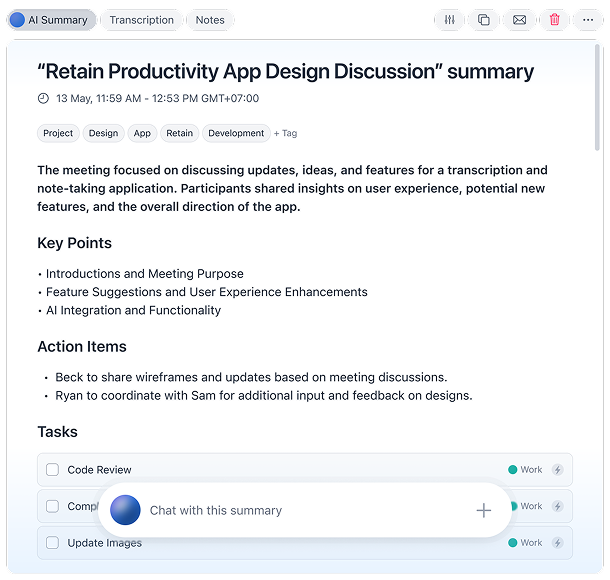
Open Retain before your meeting or use the auto-capture prompt if enabled.
Retain will join, listen, and build structured notes—action items, decisions, risks, stakeholders, and more.
When the meeting ends, your notes appear automatically in your workspace.
Learn more about capturing meetings with Retain.
4. Create the perfect follow-up email
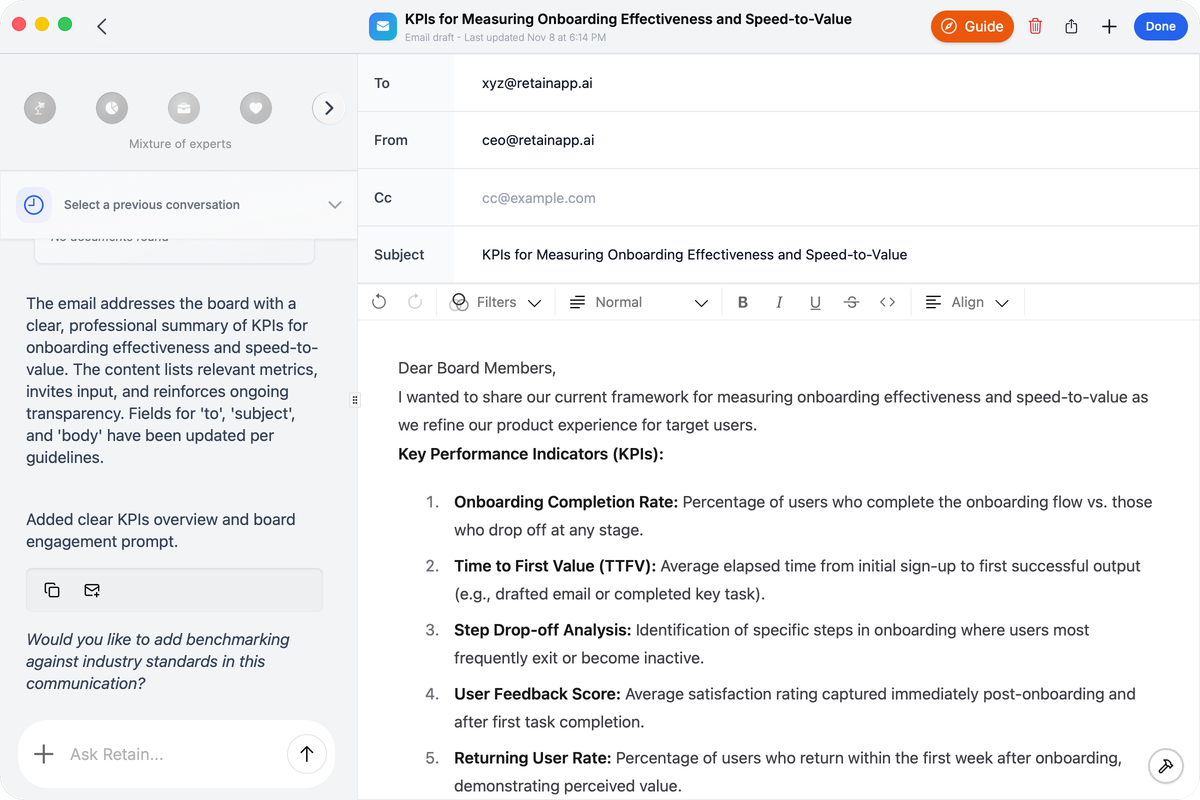
From the meeting summary, click Generate Follow-Up.
Retain drafts a polished, context-aware email using the action items, owners, dates, and key decisions captured from the meeting.
Edit lightly, hit send, and keep your projects moving forward.
Need help?
Can't find what you're looking for? Contact our support team for a quick reply.
Contact Support